
บทที่ 2 — การติดตั้ง
thClaws มาในรูปแบบ binary ตัวเดียวคือ thclaws — รันในโหมด
desktop GUI ได้ (ไม่ใส่ flag) หรือสลับเป็น CLI REPL (--cli) หรือ
โหมดหนึ่ง turn สำหรับ script (-p "prompt") ก็ได้จาก flag เดียวกัน
ดาวน์โหลด build ที่ตรงกับ OS และ CPU ของคุณได้จาก:
https://42oqj9rrg6.dja.spinupwp.site/downloads.html
มี build ให้สำหรับ:
| OS | สถาปัตยกรรม |
|---|---|
| macOS | Apple Silicon (arm64), Intel (x86_64) |
| Linux | x86_64, arm64 |
| Windows | x86_64, arm64 |
เลือก build ให้ตรงกับ OS และสถาปัตยกรรม CPU ของเครื่อง — โหลดผิด build
binary จะรันไม่ได้ (ถ้าไม่แน่ใจว่าเครื่องเป็น arm64 หรือ x86_64
ดูจาก uname -m บน macOS/Linux หรือ System Information > “System type”
บน Windows)
ความต้องการของระบบ
ตัว thClaws เองมีขนาดเล็ก — ดาวน์โหลดราว ๆ 17 MB (single-arch
tarball หลัง gzip) แตกไฟล์เป็น binary ราว ๆ 25 MB สำหรับ
thclaws-cli หรือ 40 MB สำหรับ GUI build (thclaws) และใช้ RAM
ราว ๆ 250–400 MB ตอนรัน ซึ่งส่วนใหญ่เป็นของ webview ที่ระบบปฏิบัติการ
ให้มาเอง (WKWebView บน macOS, WebView2 บน Windows, WebKit2GTK บน
Linux)
| ขั้นต่ำ | ที่แนะนำ | |
|---|---|---|
| OS | macOS 12+ · Windows 10+ · Linux ที่มี webkit2gtk-4.1 (Ubuntu 22.04+, Fedora 38+) | เวอร์ชัน stable ล่าสุด |
| CPU | 64-bit x86_64 หรือ ARM64 ของช่วง 10 ปีมานี้ | multi-core รุ่นใหม่ ๆ |
| RAM | ว่างอยู่ 2 GB | รวมทั้งเครื่อง 8 GB |
| Disk | ~50 MB | SSD |
| Network | จำเป็นถ้าใช้ cloud provider (Anthropic / OpenAI / Gemini / OpenRouter / Z.ai / DashScope / Agentic Press); ถ้าใช้แต่ Ollama หรือ LMStudio ในเครื่อง ก็ไม่ต้องใช้เน็ต | broadband |
ถ้าใช้ thClaws กับ cloud provider อย่างเดียว — โน๊ตบุ๊คซื้อมาในช่วงไม่กี่ ปีหลัง ๆ รันได้สบาย ๆ ส่วนกรณีรันโมเดลในเครื่องเอง (local) เพดานสเปก มาจาก runtime ของโมเดล (Ollama / LMStudio) ไม่ใช่ตัว thClaws — ดูตัวเลข RAM/VRAM ตามขนาดโมเดลในส่วน “ทางเลือก: Ollama สำหรับใช้งาน local ล้วน ๆ” ด้านล่าง
อยาก build จาก source? thClaws เป็น open source — clone github.com/thClaws/thClaws แล้วเลือกได้สองแบบ:
- GUI version (ตัวเดียวกับที่เราปล่อย binary ให้ดาวน์โหลด): build
thclawsที่รันได้ทั้ง GUI,--cliและ-pต้องมี frontend bundle ก่อนเสมอ เพราะ Rust crate embedfrontend/dist/index.htmlตอน compile
bash
  $ cd frontend && pnpm install && pnpm build && cd ..
  $ cargo build --release --bin thclaws --features gui \
      --manifest-path crates/core/Cargo.toml
- CLI-only version (ไม่มีใน release — build เองถ้าต้องการ): ไม่มี dependency ของ GUI (WebKit / WebView2) compile ไวกว่า เหมาะกับ เซิร์ฟเวอร์ headless หรือ container ที่ไม่ต้องการหน้าต่าง
bash
  $ cargo build --release --bin thclaws-cli \
      --manifest-path crates/core/Cargo.toml
ต้องใช้ Rust 1.85+ (ทั้งสองแบบ) และ Node.js 20+ กับ pnpm 9+ สำหรับ GUI build สำหรับผู้ใช้ส่วนใหญ่เราแนะนำให้ใช้เส้นทางการติดตั้งด้วย download ด้านล่างมากกว่า
ติดตั้ง
macOS
แนะนำ — universal .dmg installer
- ดาวน์โหลด
thclaws-<version>-universal-apple-darwin.dmg— ไฟล์เดียวรองรับทั้ง Apple Silicon และ Intel ไม่ต้องเลือก architecture - ดับเบิลคลิก
.dmgแล้วลาก thClaws ไปยังโฟลเดอร์ Applications เมื่อหน้าต่าง installer เปิดขึ้น - เปิด thClaws จาก Launchpad หรือ Spotlight ครั้งแรก Gatekeeper อาจขึ้นว่า “thClaws can’t be opened because Apple cannot check it for malicious software” — กด OK จากนั้นเข้า System Settings → Privacy & Security เลื่อนลงไปที่ข้อความเรื่อง thClaws แล้วกด Open Anyway macOS จะจำตัวเลือกไว้
- แอป desktop จะติดตั้ง CLI shim ของ
thclawsและthclaws-cliลงใน$PATHตอนเปิดครั้งแรก (ผ่านเมนู Install CLI tools ถ้า ไม่ทำให้อัตโนมัติ) หลังจากนั้นเรียกthclawsกับthclaws-cliได้จากทุก terminal
แค่นั้น — ไม่ต้องแก้ PATH ไม่ต้องล้าง xattr
ติดตั้งแบบ manual (ทางเลือกสำรอง) — สำหรับเครื่อง headless / SSH / สั่งผ่าน script ที่รัน GUI installer ไม่ได้
1. ดาวน์โหลด tarball ตาม architecture: `thclaws-Linux
- ดาวน์โหลด
thclaws-<version>-<arch>-unknown-linux-gnu.tar.gz - แตกไฟล์แล้วติดตั้ง:
bash
   $ tar -xzf ~/Downloads/thclaws-*-linux-gnu.tar.gz
   $ mkdir -p ~/.local/bin
   $ install -m 755 thclaws ~/.local/bin/
- ตรวจให้แน่ใจว่า
~/.local/binอยู่ในPATH(distro ส่วนใหญ่ตั้งไว้ ให้แล้วผ่าน~/.profileถ้ายังไม่มี ให้เพิ่มบรรทัดexport PATH=...จากหัวข้อ macOS)
Windows
แนะนำ — .msi installer
- ดาวน์โหลด
.msiที่ตรงกับเครื่อง: -thclaws-<version>-x86_64-pc-windows-msvc.msiสำหรับ Windows บน Intel / AMD (กรณีทั่วไป) -thclaws-<version>-aarch64-pc-windows-msvc.msiสำหรับ Windows on ARM (Surface Pro X, Snapdragon X laptop ฯลฯ) - ดับเบิลคลิก
.msi— installer เป็นแบบ per-user (ไม่ต้องใส่ admin password) จะวาง binary ไว้ที่%LOCALAPPDATA%\Programs\thclawsเพิ่ม path นั้นเข้า userPATHให้อัตโนมัติ พร้อมสร้าง shortcut ในเมนู Start - เปิด PowerShell หรือ terminal ใหม่ —
thclawsกับthclaws-cliพร้อมใช้บนPATHแล้ว เปิด GUI ได้จากเมนู Start
Windows SmartScreen อาจขึ้น “Windows protected your PC” ตอนรัน ครั้งแรกเพราะ binary ยังไม่ได้ sign — กด More info → Run anyway
แค่นั้น — ไม่ต้องแก้ PATH ไม่ต้องเข้า dialog environment variables
ติดตั้งแบบ manual (ทางเลือกสำรอง) — กรณีไม่อยากใช้ installer (เช่น portable install บน USB stick, automation pipeline, policy ของบริษัทบล็อก .msi)
> **`%LOCALAPPDATA%` คืออะไร** — เป็น environment variable ของ Windows
> ที่ expand เป็น `C:\Users\รันผ่าน Docker
สำหรับ headless server, CI runner หรือสภาพแวดล้อม strict
enterprise ที่ติดตั้ง Rust + Node + GTK/WebKit2GTK บน host
โดยตรงไม่ได้ — มี image ทางการบน Docker Hub ที่ bundle binary
thclaws ตัวเดียวกัน รัน --serve เป็น default และเข้าถึง
project folder บน host ผ่าน volume bind mount
# Pull image
$ docker pull thclaws/thclaws:latest

# cd เข้าไปใน project ของคุณ จากนั้น:
$ docker run --rm -it \
    -v "$(pwd)":/workspace \
    -p 127.0.0.1:8443:8443 \
    thclaws/thclaws:latest
เปิด http://localhost:8443 ในเบราว์เซอร์
เพิ่ม API key — ถ้าตั้งใน shell ไว้แล้ว key จะ pass ผ่านเข้า container อัตโนมัติ ถ้าจะ inject key ต่อ container ให้เพิ่ม
--env-file .envในคำสั่ง run แล้วใส่ANTHROPIC_API_KEY=…,OPENAI_API_KEY=…ฯลฯ ในไฟล์.envที่pwdหรือจะตั้ง key ภายหลังจาก settings UI ในเบราว์เซอร์ก็ได้ — thClaws เขียนลง.thclaws/settings.jsonใน mount ก็จะ persist ข้าม container restart หมายเหตุ: Docker จะ error (open .env: no such file or directory) ถ้า pass--env-file .envแล้วไฟล์ไม่มีจริง —touch .envก่อนหรือไม่ก็ถอด flag ออก folder ที่ mount ไว้ จะปรากฏเป็น/workspaceใน container thClaws จะเขียน state ของ session / plan / team / KMS ลงที่./.thclaws/บน host — container restart ก็ไม่หาย
สำหรับการรันยาว ๆ มี docker-compose.yml แถมมาในรีโป:
services:
  thclaws:
    image: thclaws/thclaws:latest
    ports: ["127.0.0.1:8443:8443"]
    volumes:
      - ./:/workspace
      - thclaws-config:/root/.config/thclaws
    env_file: [.env]
    restart: unless-stopped
volumes:
  thclaws-config:
docker compose up -d รันขึ้น docker compose logs -f thclaws
ดู log สด ๆ
ข้อสังเกต:
--serveไม่มี auth ระดับ application ใน v0.1 ให้ bind ที่127.0.0.1ฝั่ง host แล้วเข้าจากระยะไกลผ่าน SSH tunnel (ssh -L 8443:localhost:8443 server) หรือเอา reverse proxy + auth ของคุณเองมาวางหน้า- Tag:
:latest(รุ่น ship ล่าสุด) และ:edge(currentmain) pin release tag (เช่น:0.9.9) สำหรับ deploy ที่ reproducible - Image เป็น multi-arch (
linux/amd64+linux/arm64)docker pullเลือก variant ให้อัตโนมัติตาม host - API key มาจาก block
--env-file/env_file, env shell ของ host ที่ pass ผ่าน Docker หรือที่อยู่ใน.thclaws/.envของ project ที่ mount เข้ามา — container ไม่มี keychain - container รันเป็น root โดย default เพื่อให้เขียน bind-mount
บน Linux ได้โดยไม่ต้อง juggle UID override ด้วย
user:
  "1000:1000"
ใน compose ถ้าใจไม่สบาย
เทคนิคเพิ่มเติม (build chain, ทำไม image ถึงมี GTK + WebKit2GTK
runtime, workflow ของการ publish) อยู่ที่
docker.md ใน
technical manual
ทางเลือก: Ollama สำหรับใช้งาน local ล้วน ๆ
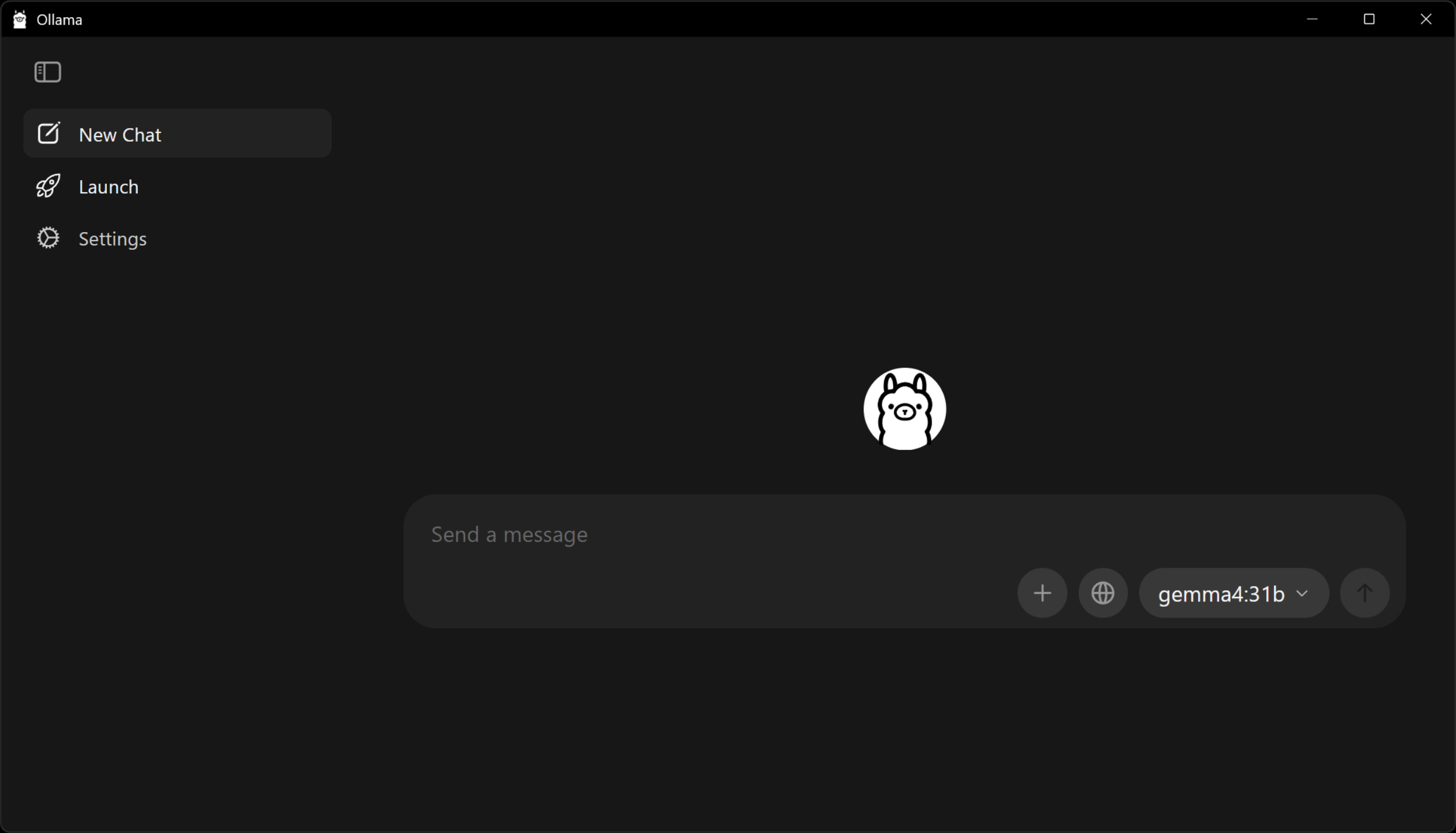
ถ้าต้องการรันกับโมเดล local ทั้งหมดโดยไม่ใช้ API key ของ cloud ให้ ติดตั้ง Ollama ควบคู่กับ thClaws:
# macOS
brew install ollama

# Linux (script installer)
curl -fsSL https://ollama.com/install.sh | sh

# Windows
# Download the installer from ollama.com/download
เริ่ม daemon ของ Ollama (ollama serve หรือเปิดผ่าน desktop app) แล้ว
pull โมเดลที่ใหญ่พอสำหรับงาน agent โมเดลเล็ก ๆ (Llama 3.2, Phi-3
ฯลฯ) มักพลาดเรื่องรูปแบบการเรียก tool และ reasoning หลายขั้น แนะนำ
ให้ใช้ Gemma 4 26B ขึ้นไป:
$ ollama pull gemma4:26b         # recommended minimum
$ ollama pull gemma4:31b         # better if your hardware can host it
งบประมาณฮาร์ดแวร์คร่าว ๆ:
| โมเดล | RAM / VRAM ที่ต้องการ |
|---|---|
gemma4:26b |
~20 GB |
gemma4:31b |
~24 GB |
Apple Silicon ที่มี unified memory 32 GB รันขนาด 31B ได้สบาย ๆ ส่วน เครื่อง Mac ที่มี RAM 16 GB ควรอยู่ที่ 26B ถ้าใช้ GPU แยก ตัวเลข ด้านบนหมายถึง VRAM ไม่ใช่ RAM ของระบบ
สั่ง thClaws ให้สลับไปใช้โมเดลนั้นด้วย /model ollama/gemma4:26b (หรือ
โมเดลที่คุณ pull มา) โดยไม่ต้องใช้ API key บทที่ 6 อธิบายตัวเลือกของ
Ollama อย่างละเอียด รวมถึง prefix oa/* ที่ compatible กับ Anthropic
ซึ่งมักให้ผลลัพธ์ tool call ที่สะอาดกว่าเมื่อใช้กับโมเดล local ตัวเดียวกัน
ตรวจสอบการติดตั้ง
$ thclaws --version                   # print version
$ thclaws --cli                       # interactive REPL
$ thclaws -p "say hi in one word"     # headless one-shot (--print also works)
ทั้งสามคำสั่งควรพิมพ์ผลหรือรันได้โดยไม่ error ถ้า -p / --print
ถามหา key แสดงว่ายังไม่ได้ตั้งค่า — ไปที่บทที่ 6
อัปเดต
ดาวน์โหลด archive เวอร์ชันใหม่จาก https://42oqj9rrg6.dja.spinupwp.site/downloads.html
แล้วทำตามขั้นตอนการติดตั้งของ platform ของคุณซ้ำอีกครั้ง config เดิม
(API key, session, plugin ฯลฯ) ที่อยู่ใต้ ~/.config/thclaws/ (หรือ
%APPDATA%\thclaws\ บน Windows) จะยังคงอยู่ — เปลี่ยนแค่ตัว binary
เท่านั้น
ถอนการติดตั้ง
# macOS / Linux
$ rm ~/.local/bin/thclaws

# Windows (PowerShell)
PS> Remove-Item "$env:LOCALAPPDATA\Programs\thclaws" -Recurse
Configuration และ state ที่บันทึกไว้จะอยู่ใต้ ~/.config/thclaws/
(หรือ %APPDATA%\thclaws\ บน Windows) ถ้าต้องการ uninstall ให้สะอาด
ก็ลบพวกนี้ด้วย:
$ rm -rf ~/.config/thclaws
การแก้ปัญหา
| อาการ | วิธีแก้ |
|---|---|
thclaws: command not found หลังติดตั้ง |
~/.local/bin ไม่ได้อยู่ใน PATH — เพิ่ม export PATH="$HOME/.local/bin:$PATH" เข้าไปใน rc ของ shell |
| macOS แจ้งว่า “cannot be opened because the developer cannot be verified” | ทำครั้งเดียว: xattr -d com.apple.quarantine ~/.local/bin/thclaws |
Linux: error while loading shared libraries: libssl.so.3 |
ติดตั้ง OpenSSL 3 (sudo apt install libssl3 / sudo dnf install openssl) |
Windows: PowerShell ไม่รู้จัก thclaws |
folder ไม่อยู่ใน PATH — เช็ค env var PATH อีกครั้งแล้วเปิด terminal ใหม่ |
| หน้าต่าง GUI ไม่เปิด | ลอง thclaws --cli ก่อน — ถ้ารันได้ แสดงว่า webview ของ GUI ขาด dep ของระบบ (WebKit บน Linux / WebView2 บน Windows) |
ต่อไป
บทที่ 3 อธิบายว่า thClaws กำหนดขอบเขตตัวเองให้อยู่ภายใน directory ของ
โปรเจกต์อย่างไร พร้อมโหมดการรันทั้งสามแบบ (GUI, CLI REPL, one-shot
-p / --print) ส่วนบทที่ 6 คือที่ที่คุณจะตั้งค่า provider และ API key